Alexa Spinning Blue but Not Responding (Quick Fixes)
By Marlo Strydom · Updated
An Echo that spins blue and then ignores you is usually doing one of two things: starting up, or stuck on a voice request. The fix depends on which one, so check that first.
Best Fix Order for a Spinning Blue Ring
Let startup finish first. For a stalled request, wait, say "Alexa, stop," and check the microphone button.
Still stuck? Check for a service problem, restart once, then test WiFi and power. Reset only after all of that fails.
Separate Startup from a Stalled Request
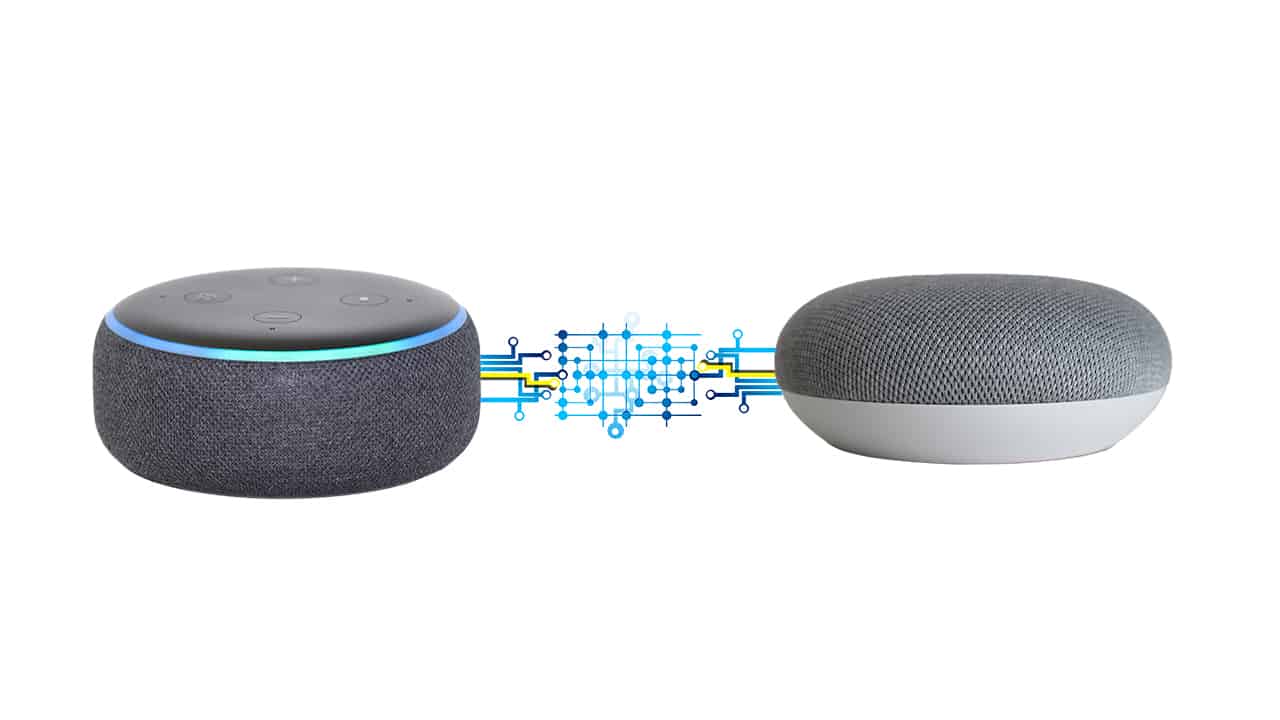
Amazon's Echo light descriptions say a slow teal-and-blue spin means the Echo is starting up, which can also happen after a software update. A brief blue glimmer after you speak is different: Alexa is working on your request.
No single wait time fits every model, so use what you saw to pick a check:
- Just plugged in or restarted: Leave the Echo powered while it starts. Follow an update message or Amazon's model-specific guidance if one appears.
- Stopped after a voice request: Check whether a simple question works and whether other devices can reach the internet.
- Repeated startup cycle: Inspect the power adapter and outlet before trying a reset.
- Several Echos fail together: Check for a service problem before changing individual devices.
If the blue light is solid instead of spinning, see our solid blue ring guide. If it lights up when nobody spoke to it, see what wakes Alexa up.
Fix 1: Give the Current State Time to Finish
If Alexa stalled after a request, wait about 30 seconds, then say "Alexa, stop." That wait is only for a stuck request, not for startup or an update.
If the Echo has just restarted, let the startup light settle before you test it. Don't keep unplugging it while it updates. If it keeps going back to startup, check the power (Fix 6).
Fix 2: Check the Microphone Button
The microphone button turns listening off and on. It won't always clear a stalled request, but it's a quick check:
- Find the microphone button on your Echo (it has a microphone icon with a line through it)
- Press it once to mute the microphone. The light ring turns red.
- Wait 5 seconds
- Press the button again to unmute
Try a simple request after unmuting.
Fix 3: Unplug and Restart Your Echo
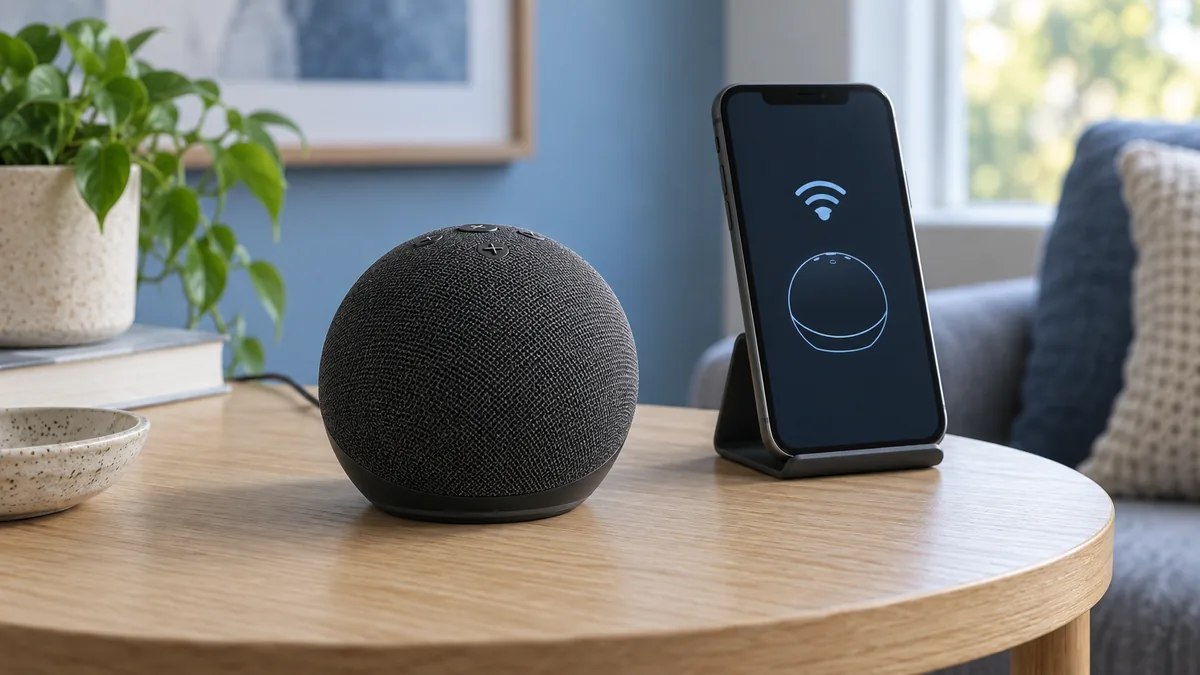
Amazon suggests a simple restart when a device stops responding. It also makes the speaker reconnect to WiFi.
- Pull the power cord out of your Echo device
- Wait 30 seconds
- Plug the power cord back in
- Wait for your Echo to finish starting up (the blue light will spin during boot, then turn off)
Then say "Alexa, what time is it?" to test it.
Fix 4: Check Your Internet Connection
Connection trouble can leave an Echo waiting for a reply. Check the speaker and your home network:
- Use your phone to check if other devices can access the internet
- Open the Alexa app, select Devices, choose the Echo, and open its device settings
- Look at the WiFi network section to see if your Echo shows as connected
- Restart the router and Echo if other devices are also losing their connection
Amazon's Echo WiFi troubleshooting steps list these same checks, plus the placement tips below.
Fix 5: Move Your Echo Closer to the Router
Distance and nearby electronics can weaken a WiFi connection.
For best results:
- Keep the Echo within 30 feet of the WiFi router, as Amazon recommends
- Avoid placing it behind a TV, inside a cabinet, or near a microwave
- Move it away from baby monitors and other electronics while testing
- Check WiFi coverage before deciding whether you need a mesh node or extender
Check for a Wider Service Problem
When several Echos fail but the rest of your internet works, the problem may be on Amazon's side. Look for a service notice in the Alexa app or on Amazon Support, and check recent Alexa problem reports. Crowd reports don't confirm an outage, but if many people report the same problem, wait before resetting anything.
Fix 6: Check Power, Then Consider a Reset
Unplug a damaged adapter or cable and stop using it. Confirm that the adapter is approved for your exact Echo model and test a working wall outlet. An adapter that does not supply enough power can stop the Echo from starting up properly.
If a correct power supply, working network, and one clean restart do not help, find the exact model in Amazon's Echo support directory. Follow its reset instructions only as a final step. A reset erases the device setup and cannot fix a service outage.
Prevent Future Spinning Problems
Most repeat problems come back to WiFi, placement, or power, so keep the fixes above in place. Also install Alexa app and router updates when they are available.