Use Laptop Screen as CCTV Monitor | Practical Methods That Work
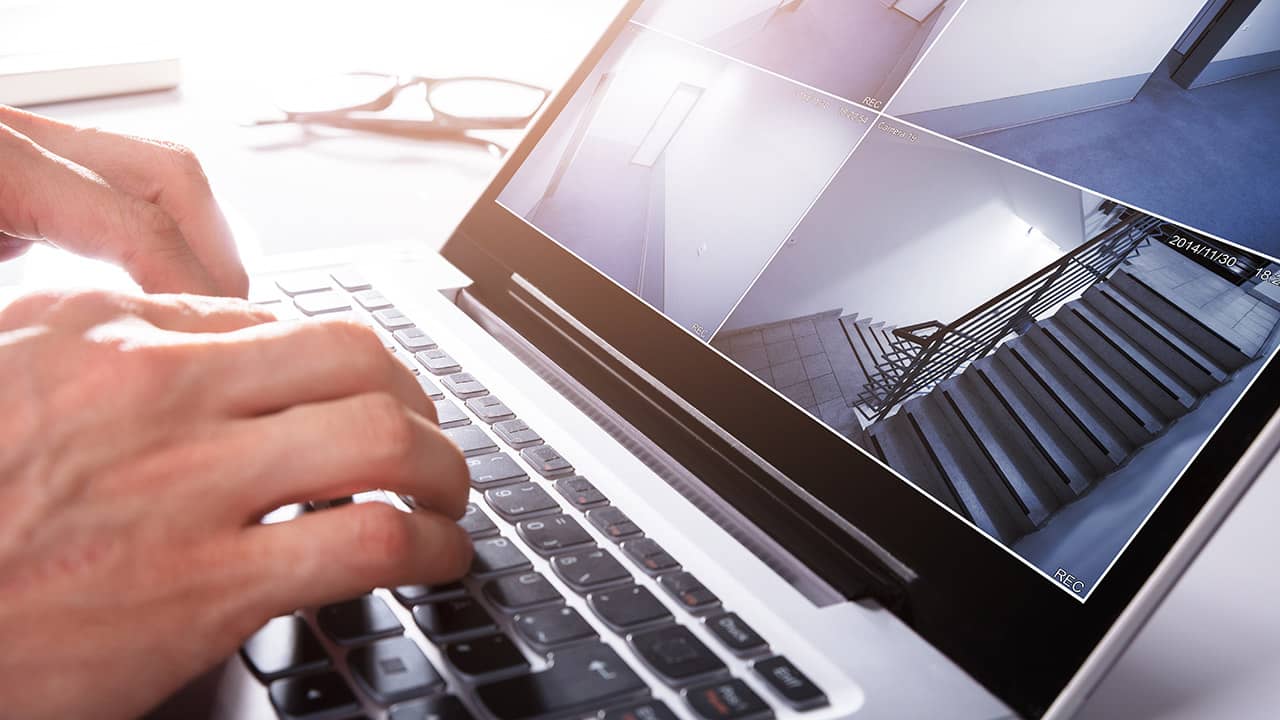
Can I use my laptop as a CCTV monitor?
Yes, you can use a laptop screen as a monitor for CCTV, but you cannot simply plug an HDMI cable from the DVR to the laptop. Laptops have HDMI outputs, not inputs.
To make this work, you must use one of two methods:
- The Network Method (Best): Connect both devices to the same router and use viewing software.
- The Capture Card Method: Use a USB Video Capture Card to convert the DVR's HDMI signal into a USB webcam feed your laptop can read.
If you want to watch your security cameras without buying a dedicated bulky monitor, repurposing your laptop is a brilliant solution. It saves desk space, saves money, and makes your surveillance mobile.
However, many people get stuck because they try to connect the cables directly, resulting in a black screen. In this guide, we will break down exactly how to use a laptop screen as a monitor for CCTV correctly, avoiding the common hardware mistakes.
The Big Mistake: HDMI Input vs Output
Warning: Do not plug an HDMI cable directly from your DVR/NVR into your laptop's HDMI port. Nothing will happen.
Before we start, it is crucial to understand why a direct cable connection fails. 99% of laptops manufactured have an HDMI Output port. This is designed to send your laptop's screen to a TV or projector.
Your CCTV DVR also has an HDMI Output. When you connect two outputs together, no video data is transferred, and in rare cases, you can damage the ports. To force your laptop to accept a video signal, you need a specific adapter called a Video Capture Card.
Method 1: The Capture Card Way (Hardware Solution)
This is the best method if you have an older analog CCTV system that doesn't connect to the internet, or if you just want a quick "plug and play" solution without configuring IP addresses.
What You Need
- Laptop: Windows or Mac.
- HDMI Video Capture Card: These are affordable USB dongles (HDMI to USB) available online.
- HDMI Cable: To connect the DVR to the dongle.
- Viewing Software: Free software like OBS Studio or even the Windows "Camera" app.
Step-by-Step Setup
- Connect the Capture Card: Plug the USB Video Capture Card into a USB port on your laptop.
- Connect the DVR: Plug one end of your HDMI cable into the "HDMI OUT" port on your DVR/NVR. Plug the other end into the input slot on the USB Capture Card.
- Open Software:
- Simplest way (Windows): Open the built-in "Camera" app. Click the "Change Camera" icon until you see your CCTV feed (it treats the DVR like a webcam).
- Pro way (OBS Studio): Download OBS Studio. Add a new "Video Capture Device" source and select "USB Video."
- View Footage: Your laptop screen is now acting as a direct monitor for your CCTV system.
Method 2: The Network/LAN Way (Best Quality)
If you have a modern NVR or IP camera system, this is the superior method. It uses your home network (router) to send the video data, resulting in higher resolution and no extra cables dangling from your laptop.
What You Need
- Ethernet Cables: To connect the DVR/NVR to your router.
- Router/Switch: The central hub of your network.
- CMS Software: Manufacturer software (e.g., iVMS-4200, SmartPSS) or third-party tools like Blue Iris.
Step-by-Step Setup
- Network Your DVR: Connect an Ethernet cable from your DVR/NVR LAN port to one of the LAN ports on your Wi-Fi router.
- Connect Laptop: Ensure your laptop is connected to the same router (via Wi-Fi or Ethernet cable).
- Find the IP Address: On your DVR settings menu (you might need a temporary TV monitor for this initial setup), look for "Network" > "TCP/IP". Note down the IP address (e.g., 192.168.1.108).
- Access via Browser: Open Chrome or Edge on your laptop. Type the IP address into the address bar and hit Enter.
- Login: Enter your CCTV username and password. You should now see the live view interface directly in your browser.
Tip: For a smoother experience than a web browser, download the specific "CMS Client" software provided by your camera brand (Hikvision, Dahua, Reolink, etc.).
Troubleshooting Common Issues
Even with the right method, you might run into hiccups. Here is how to fix the most common laptop-as-monitor problems.
1. Black Screen (Capture Card Method)
If OBS or the Camera app shows a black screen, your DVR resolution might be too high for the cheap capture card. Connect the DVR to a TV, go to Display Settings, and lower the output resolution to 1080p or 720p.
2. "Plugin Required" (Network Method)
If viewing via a web browser (Internet Explorer mode is often required for older systems), you may be asked to install a plugin. If modern browsers block this, install the "IE Tab" extension for Chrome, or download the dedicated CMS software for your computer instead.
3. Laggy Video
Viewing CCTV over Wi-Fi can cause lag if the signal is weak. For the best performance, connect your laptop to the router using an Ethernet cable.
Frequently Asked Questions
Can I use a VGA to USB adapter?
Yes, similar to the HDMI capture card, you can buy VGA capture cards. However, VGA carries no audio and has lower picture quality. HDMI capture cards are preferred.
Can I turn an old laptop into a dedicated CCTV monitor?
Absolutely. An old laptop is perfect for this. We recommend formatting the laptop, installing a lightweight OS, and running just the CMS client software. Ensure the laptop is set to "Never Sleep" in power settings.
Does this work with MacBooks?
Yes. MacBooks support USB capture cards (using QuickTime Player to view the feed) and most major security brands offer Mac-compatible CMS software for network viewing.
Wrap Up
Learning how to use a laptop screen as a monitor for CCTV is a great skill that saves money on dedicated hardware. Just remember the golden rule: HDMI ports on laptops are one-way streets (out only).
If you want a quick, wired connection, spend the $15-$20 on a USB HDMI Capture Card. If you want a professional setup that lets you view cameras from the couch without wires, connect your system to your router and use the Network Method. Both transform your everyday laptop into a powerful security hub.